
WhatsApp For iPhone, iPad, Android, PC & Mac – September 2022
Summary
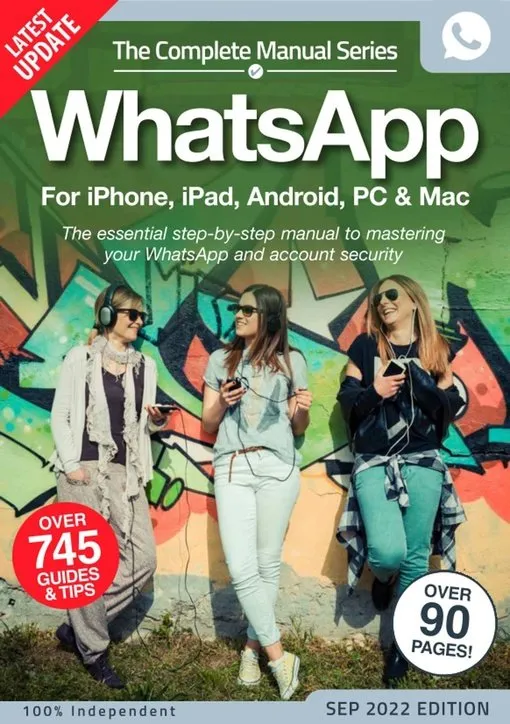
Over 745 step-by-step guides crammed into 90-plus pages, The Complete Manual: WhatsApp for iPhone, iPad, Android, PC & Mac September 2022 opens with the app’s origin story: Brian Acton and Jan Koum founded it in January 2009, Facebook bought it for $19 billion in 2014, and it went free in 2016. Installation chapters span five platforms from Android to Windows Phone, while the Advanced Hacks section at page 74 covers pinning, archiving, restoring deleted chats, and formatting text. The security section at page 46 walks through two-step verification setup and the Delete My Account protocol.
The manual is structured in four parts: History, Getting Started, Settings & Features, and Advanced Tips. Each section assumes zero prior knowledge and uses numbered steps with platform-specific screenshots referenced in the layout. The Privacy chapter at page 44 covers read receipts, last-seen toggles, and profile photo visibility. The Editing Images chapter at page 60 teaches in-app markup before sending. A Text Language Glossary at page 90 decodes common chat abbreviations.
Regular reference pages include an FAQ at page 56, a wallpaper gallery at page 68, and an Emoticons and Emoji Stickers directory at page 70. The Jailbroken iPhones warning at page 17 and the Fake WhatsApp Warning at page 15 add security consciousness. A pure utility reference, not a magazine, but functionally dense for first-time smartphone users.
—————
Content Guide
▸ Getting Started
p.14 · Installing WhatsApp on Android
Step-by-step installation from Google Play, including permissions acceptance and phone number verification via SMS. The guide warns against third-party app stores. Verify your phone number before installing on a second device to avoid SIM-based authentication conflicts.
p.16 · Installing WhatsApp on an iPhone
iOS installation via the App Store, covering iCloud backup prompts and notification permission settings. The guide notes that WhatsApp cannot be installed on jailbroken iPhones due to security policy. Turn on iCloud backup before uninstalling to preserve chat history.
p.18 · Installing WhatsApp on a PC
QR-code pairing method for WhatsApp Web and the standalone desktop app. The connection requires the phone to stay online. Keep your phone within Bluetooth range of the PC for uninterrupted desktop session.
p.22 · WhatsApp on Android — Interface Walkthrough
The main screen layout explained: chat list, search bar, camera shortcut, and three-dot menu. Each icon and tab is labelled with its function. Swipe right on a chat to archive, swipe left to pin.
▸ Messaging & Media
p.32 · Sending Your First Message
Text entry, emoji insertion, attachment menu, and send button. The guide covers single and group message initiation. Long-press any sent message to access reply, forward, star, or delete options.
p.34 · How to Send Images Over WhatsApp
Camera capture, gallery selection, crop tool, and caption field. The guide explains that images are compressed by default. Tap the HD icon before sending to preserve original resolution.
p.36 · How to Make Voice and Video Calls
One-tap call initiation, speakerphone toggle, and switching between voice and video mid-call. The guide notes that calls use internet data, not cellular minutes. Switch to voice-only when signal strength drops below two bars for stable audio.
p.60 · Editing Images in WhatsApp
In-app drawing tools, text overlay, crop, and emoji stamp features. Edits are applied before sending and cannot be undone after the recipient views the image. Add text captions in the editing screen rather than the chat field to keep the image and caption together.
▸ Privacy & Security
p.44 · Privacy
Settings for last-seen, profile photo, about, status, read receipts, and live location. Each toggle is explained with its visibility scope. Set last-seen to My Contacts to balance privacy with social expectations.
p.46 · Security
Two-step verification setup with a six-digit PIN and optional recovery email. The guide explains how the PIN blocks SIM-swap account takeovers. Enable two-step verification before travelling to prevent SIM-swap attacks.
p.88 · How to Secure Yourself on WhatsApp
A consolidated security checklist: enable two-step verification, disable auto-download for media, review linked devices, and report suspicious messages. Check your linked devices page once a month and remove any unknown sessions.
▸ Advanced
p.74 · Pin Chats
Pin up to three conversations to the top of the chat list. Pinned chats remain at the top regardless of new message activity. Pin your most active group chat and your partner’s chat for quick access.
p.82 · Creating a Group
Add participants, set group subject and icon, and choose admin privileges. The guide covers the 256-participant limit and admin-only messaging option. Set group admins before adding all members to control the notification flood.
p.86 · Formatting Text
Bold, italic, strikethrough, and monospace formatting using punctuation shortcuts. Bold uses asterisks, italic uses underscores, strikethrough uses tildes. Type your message first, then add the formatting symbols around the words you want to style.
▸ Reference
p.56 · FAQ
Common questions answered: account bans, message delivery indicators, backup restoration, and multi-device limits. The FAQ clarifies the grey tick vs. blue tick meaning. A single grey tick means delivered to server, not to the recipient’s device.
p.70 · Emoticons and Emoji Stickers for WhatsApp
A visual directory of emoji categories and sticker packs available within WhatsApp. The guide explains that stickers are downloaded per-pack and stored locally. Delete unused sticker packs to free storage space.
—————
Editor’s Take
This is a manual, not a magazine, so judging it on editorial ambition would be unfair. Within its genre it is competent: the five-platform installation coverage is genuinely comprehensive, the two-step verification section is clear, and the text formatting guide at page 86 is the kind of reference that saves users years of not knowing. The wallpapers section at page 68 is pure filler – stock nature HD wallpapers have nothing to do with WhatsApp operation. The Text Language Glossary at page 90 is useful but belongs in an appendix, not a premium position. The Fake WhatsApp Warning at page 15 and jailbroken iPhone warning at page 17 are responsible inclusions. The manual’s audience is clearly the absolute beginner: anyone who has used WhatsApp for more than three months will find little new beyond the formatting shortcuts and security checklist. Best as a companion for elderly or first-time smartphone users setting up their first messaging account.
Strengths
• Five-platform installation coverage with platform-specific screenshots
• Two-step verification walkthrough with PIN recovery workflow
• Text formatting shortcut reference for bold, italic, and strikethrough
Weaknesses
• Wallpaper gallery is irrelevant filler in a how-to manual
• Content is beginner-only; intermediate users will skip most pages
Verdict: Selective read — A competent beginner’s manual but strictly for first-time WhatsApp users; experienced users can skip everything except the formatting and security pages.
